Which collage do you want?
| Result | How to prepare it | When it helps |
|---|---|---|
| Story collage | One tall composition or a layout available in the Story camera | A brief recap with several pictures on one screen |
| Single-image feed collage | One finished image containing several photos | A compact comparison, moodboard or set of details |
| Collage carousel | Several matching slides, optionally with layers crossing the seams | A longer story with room for individual photos |
A collage and a carousel describe different things. A collage puts several pictures inside a composition. A carousel lets the viewer swipe between items. You can post a collage as one image, put several collages into a carousel, or make a single composition continue across its slides. Decide which experience you want before choosing a template, because the amount of space and the reading order change.
For a feed collage, preparing the image in a separate tool gives you a result you can review before opening Instagram. You do not have to depend on a particular editing control being available in your account. The Story camera has offered Layout and photo layering, but controls vary by app version. Use the dedicated Story guide when that is your destination rather than following a feed workflow and cropping the result afterward. Read the Story collage guide.
Make a collage for an Instagram feed post
Pick the photos that belong together
Choose a small set with one clear connection: the same day, outfit, place or color. Start with two to four pictures so you can see whether the grid makes sense before adding more.
Open the free photo collage maker
The browser tool on this site accepts 2–9 photos and processes them locally. Choose a layout and a 4:5 canvas for a portrait feed example. You can use it without an account or uploading your pictures to a server. Open the free photo collage maker.
Check each crop
Make sure the important part of every image fits its cell. A grid is tidy only if its crops work: a face cut at the edge or a tiny detail lost inside a large cell can make a simple composition feel accidental.
Save the image and review it
Download the collage and inspect it at phone size. Check spacing, photo order and any text you added before starting the post. Keep your originals so you can remake the layout if the crop needs work.
Select the finished collage in Instagram
Create a post and choose the saved image. Review the final crop in the current app. Add a caption if it helps explain the set, then share when the preview matches what you intended.
Make a collage that continues across a carousel
A multi-slide collage gives each photograph more room. Instead of fitting every memory into one small grid, spread the composition across connected slides. A broad landscape might run along the top of two slides while portraits and details sit below. A paper edge or a small sticker can bridge a boundary without forcing the main subject onto the seam. The goal is a sequence that connects and remains readable one slide at a time.
In Glassy, start from a multi-slide template or a blank project, choose your canvas size and arrange the layers. Photos, text, stickers and frames can cross slide edges. Preview the slides and export the image sequence in order. Glassy does not publish or schedule the post for you. If you choose video or Live Photo imports or a motion export, those features require Glassy Plus. Follow the seamless carousel guide.
Free layouts for a connected collage
 Autumn Outtakes
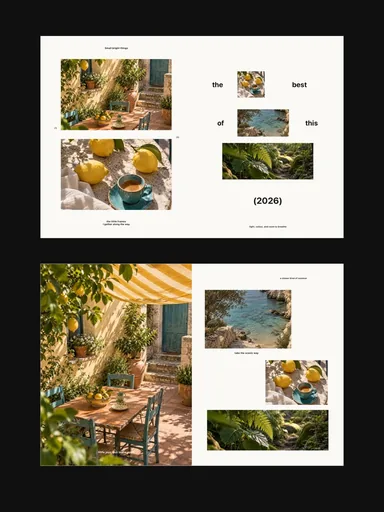 Small Bright Things
 Glacier Journal
 Still, Slowly
Make a collage on an Instagram Story
A Story collage is usually one tall screen rather than a swipeable feed strip. If Layout is available in your Story camera, use it for a simple grid; photo stickers or an already-composed image are other approaches. Leave room for the interface around the top and bottom. The Story guide covers that workflow in detail so you can keep this page focused on feed posts and carousels. Choose a Story collage method.
Collage sizes for Instagram
| Format | Example pixels | Ratio |
|---|---|---|
| Portrait feed image | 1080 × 1350 | 4:5 |
| Square feed image | 1080 × 1080 | 1:1 |
| Story composition | 1080 × 1920 | 9:16 |
Treat these as practical design starting points. Check the current posting preview and account options before publishing. For a seamless carousel, use the same dimensions throughout and keep the slice order intact; mixing crop styles can disrupt a connection. For an ordinary photo dump, the composition does not have to cross the seam at all. Choose the visual relationship first and the file arrangement second.
Tips for a collage that looks intentional
- Give one photo the lead. A larger scene or portrait helps the eye understand the page before it starts reading small details.
- Use consistent edits. Pictures can come from different moments while still sharing similar brightness or color.
- Leave deliberate spacing. A clear gap or an intentional overlap reads better than several nearly-touching edges.
- Begin with three to six photos per slide as a design exercise, then remove anything that becomes too small to recognize.
- Review at actual phone size. A layout that looks balanced while zoomed in may have unreadable labels in the final post.
Keep the final decision simple: can someone understand the collage without opening the caption? If the answer is no, reduce the number of pictures, make the important image larger or give the set a clearer order. A template can handle the initial spacing, but choosing the photographs is still the part that makes the story yours.