This guide is about putting a glass look on your own pictures. It does not change how Liquid Glass looks in the iPhone interface.
Add a glass shape to a photo
Start with the photo
Create a project in Glassy and add your photo to the canvas, or start from a Liquid Glass template and replace its photos.
Add a Glass layer
Choose Glass and pick one of the shapes or symbols, such as a rounded rectangle, a circle, a star or a heart.
Place it over detail
Drag the glass over an area with changing light, color or texture. Glass refracts what is behind it, so a flat, single-color area shows the effect the least.
Pick the material
Switch between glass, frosted, blur and color, and tint the glass to match the photo. Resize the shape until the edges sit where you want them.
Export
Preview the slide and export it to Photos. The glass is part of the image you save.
Other ways to use the effect
- Glass text: the word itself becomes glass, with the photo refracted inside the letters. It works best for one or two short, bold words.
- Glass cards: music, workout, weather, place and calendar cards can switch their material to glass, so the information sits on the photo instead of covering it.
- Glass symbols: a symbol can be glass on its own, keeping its holes and separate pieces, or be combined with other glass layers.
- Across slides: glass layers can cross the edge between carousel slides, so one glass shape can connect two images.
Liquid Glass templates in Glassy
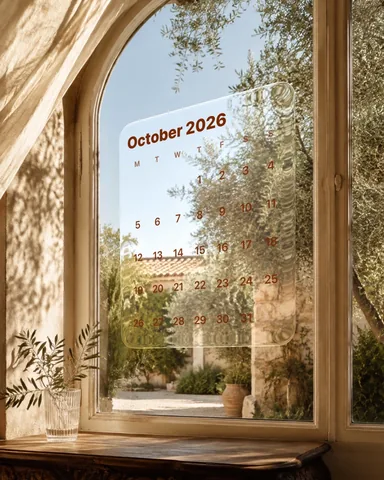 Orchard Calendar
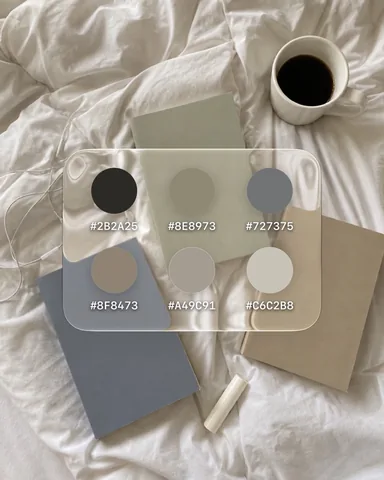 Soft Palette Study
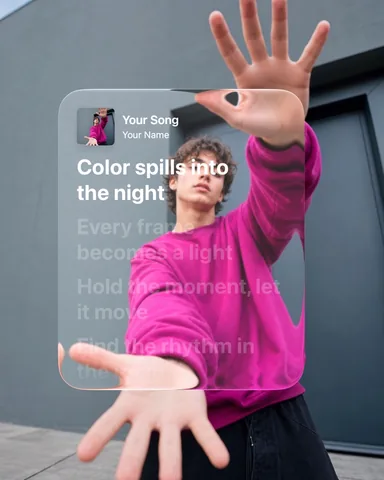 Magenta Lyrics
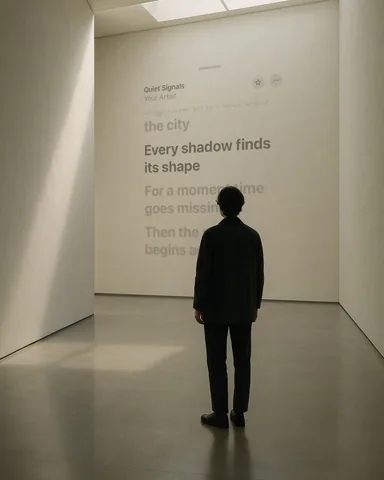 Tokyo Interlude
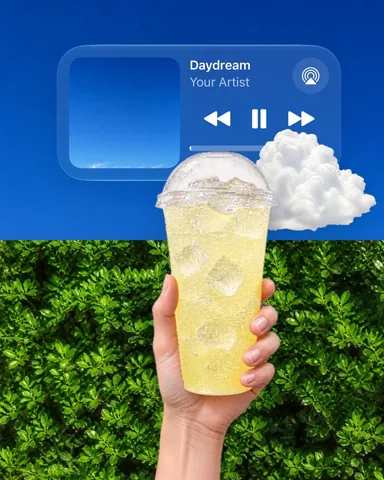 Lemon Sky
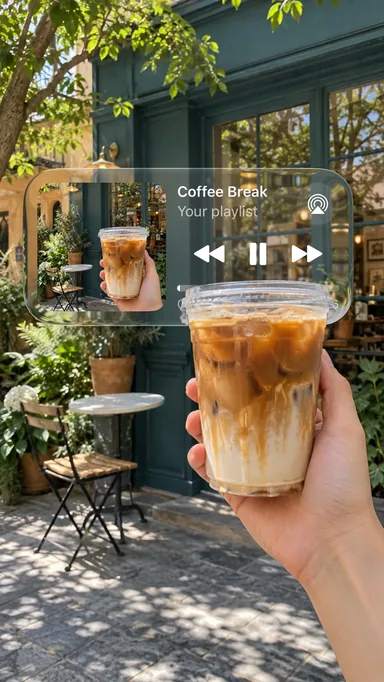 Coffee Break
 Sunlit Daydream
 Forest Pause
Some glass materials, edge controls and glass text need the optional Glassy Plus subscription. The app marks them before you export.
Liquid Glass template collection Every Liquid Glass template, with previews of each slide.