Paste a photo cutout into your Story
Lift the subject
Open the photo in the Photos app, then touch and hold the person, pet or object until a glowing outline appears.
Copy it
Release and tap Copy. The cutout, without its background, is now on the clipboard.
Open the Story editor
In Instagram, start a Story and choose the background photo or color.
Paste
Paste the cutout. Depending on your Instagram version, tap the paste prompt that appears, or open the text tool, touch and hold, and choose Paste. It becomes a sticker you can drag, pinch and rotate.
Add Instagram's built-in stickers
Open the sticker tray
In the Story editor, tap the sticker icon at the top of the screen.
Pick a sticker
Choose from location, mention, music, poll, question, GIFs and more, or search the tray.
Place it
Drag the sticker into place, pinch to resize and rotate. Tap some stickers to change their style.
Subject lifting works on photos with a clear subject and needs a recent iPhone and iOS version. If the outline does not appear, try a photo with more contrast between the subject and the background.
Design the whole Story first
Pasting works for one or two stickers. For a Story with several cutouts, text, a music card or a layout that matches your feed, it is easier to build the image in an editor and share the finished picture.
Make a sticker-style Story in Glassy
Start at Story size
Open a 9:16 Story template in Glassy.
Cut out your photos
Add a photo and cut out the subject in one tap, then layer it like a sticker. Add sticker packs, frames, text and Liquid Glass around it.
Save and post
Export the image to Photos and add it to your Story in Instagram.
 Off Duty
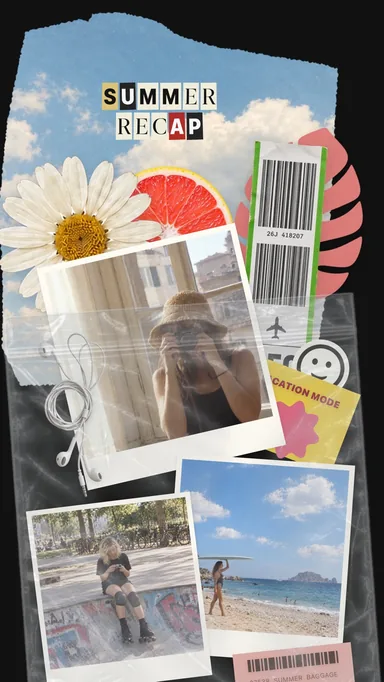 Summer Keepsakes
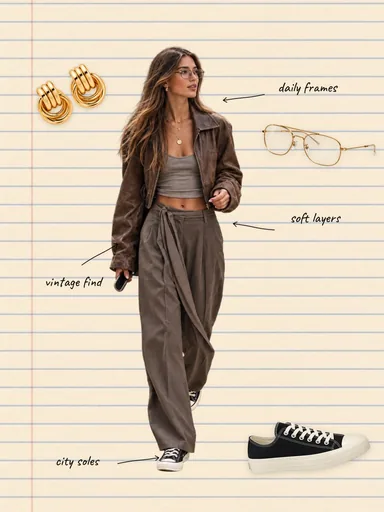 Wardrobe Notes
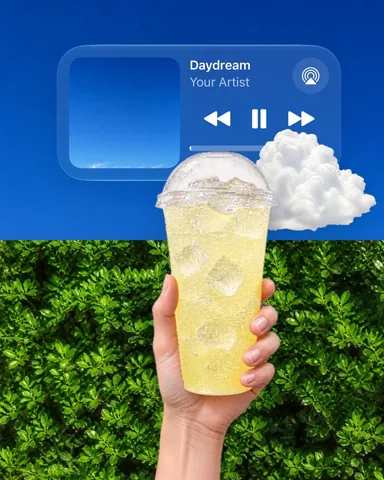 Lemon Sky